> ## Documentation Index
> Fetch the complete documentation index at: https://docs.blueberry.ai/llms.txt
> Use this file to discover all available pages before exploring further.
# Saved Offers
> Create reusable promotional templates for DM campaigns
**Beta Feature:** Saved Offers are currently only available to users with beta access to paid DM ads on Instagram.
To request access, contact **[support@blueberry.ai](mailto:support@blueberry.ai)**
## Overview
Saved Offers are reusable promotional templates that you can quickly insert into DM campaigns. Build a library of discount codes, media promotions, and text offers to streamline campaign creation and maintain brand consistency.
## Offer Types
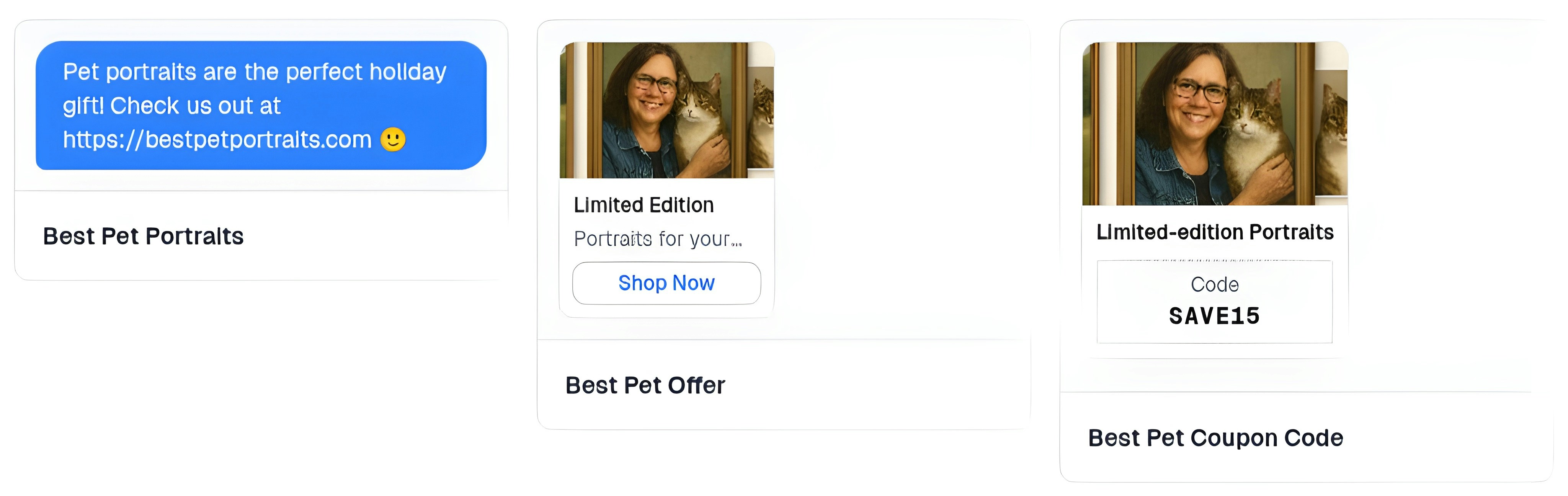
Blueberry supports three types of DM offers:
Simple text-based messages with links to your products or services.
Rich media with interactive call-to-action buttons like "Shop Now".
Discount codes or limited-time offers with promotional images and text.
 ## Creating a Saved Offer
Go to **DMs** → **Saved Offers** in the sidebar and click **+ New Offer**
Select the type of offer you want to create:
* **Text Offer** - Simple message with link
* **Media with Buttons** - Image/video with CTA button
* **Coupon Code** - Discount code with promotional content
* **Offer Name** - Internal reference (e.g., "Holiday Sale Link")
* **Message Text** - The message users will receive
* **Link URL** - Where the link directs users
* **Link Text** - Display text for the link (optional)
Keep messages concise and action-oriented. Include the value proposition clearly.
* **Offer Name** - Internal reference (e.g., "Product Launch Promo")
* **Media Upload** - Image or video for the offer
* **Button Text** - CTA text (e.g., "Shop Now", "Learn More")
* **Button URL** - Where the button directs users
* **Caption** - Optional message text above the media
Recommended image size: 1080x1080px (square) or 1080x1920px (vertical). Max video length: 60 seconds.
* **Offer Name** - Internal reference (e.g., "First Purchase 20% Off")
* **Discount Code** - The code users will use (e.g., SAVE20)
* **Discount Value** - Percentage or dollar amount description
* **Message Text** - Promotional copy
* **Media Upload** - Optional promotional image
* **Expiration Date** - When the code expires (optional)
Use simple, memorable codes like WELCOME20 instead of complex strings like X7JK9P2.
Click **Save Offer** and it will appear in your Saved Offers library, ready to use in any DM campaign.
## Previewing Offers
Before using an offer in a live campaign, you can preview how it will appear to users.
Send a test version of the offer to yourself or a team member to see exactly how it appears in DMs.
In your Saved Offers library, click the **⋯** menu on any offer
Choose **Send Test** from the dropdown menu
Select an Instagram account or Facebook Page to send the test to
The recipient must have messaged your page within the last 24 hours. This is a Meta platform requirement.
Click **Send Test** and check the message on the recipient's DMs to see how the offer appears
Send test messages to yourself by messaging your page from your personal Facebook or Instagram account first.
Preview how your offer will appear as a paid DM ad on Facebook without sending an actual message.
In your Saved Offers library, click the **⋯** menu on any offer
Choose **Preview DM Ad** from the dropdown menu
Choose which Facebook Ad Account to preview with
See exactly how your offer will appear in Facebook's DM interface as a paid ad
Optionally, click **Continue to Send** to send the ad to a specific contact.
1. Select a **Contact** to receive the message
2. Select an active **Campaign** to associate with the send
3. Click **Send Ad Test**
You can only send one DM ad to a specific contact every 12 hours to comply with platform policies.
This test counts as an impression in Meta's systems and utilizes a message send in your ad budget.
## FAQ
For coupon code offers, yes. Create the discount code in your e-commerce platform (Shopify, WooCommerce, etc.) first, then create a matching saved offer in Blueberry.
Use the exact same code in both places to avoid confusion.
Currently, you can track redemptions through your e-commerce platform's analytics by monitoring discount code usage.
Cross-reference with Blueberry campaign metrics to see which campaigns drove the most redemptions.
**Recommended sizes:**
* **Square:** 1080x1080px (best for product showcases)
* **Vertical:** 1080x1920px (full-screen mobile experience)
* **Horizontal:** 1920x1080px (landscape content)
Not yet, but this feature is coming soon. For now, offers are the same for all recipients of a
campaign.
## Related Pages
Learn about conversion campaigns and how to use saved offers effectively.
Set up triggers to automatically send offers when users show interest.
## Creating a Saved Offer
Go to **DMs** → **Saved Offers** in the sidebar and click **+ New Offer**
Select the type of offer you want to create:
* **Text Offer** - Simple message with link
* **Media with Buttons** - Image/video with CTA button
* **Coupon Code** - Discount code with promotional content
* **Offer Name** - Internal reference (e.g., "Holiday Sale Link")
* **Message Text** - The message users will receive
* **Link URL** - Where the link directs users
* **Link Text** - Display text for the link (optional)
Keep messages concise and action-oriented. Include the value proposition clearly.
* **Offer Name** - Internal reference (e.g., "Product Launch Promo")
* **Media Upload** - Image or video for the offer
* **Button Text** - CTA text (e.g., "Shop Now", "Learn More")
* **Button URL** - Where the button directs users
* **Caption** - Optional message text above the media
Recommended image size: 1080x1080px (square) or 1080x1920px (vertical). Max video length: 60 seconds.
* **Offer Name** - Internal reference (e.g., "First Purchase 20% Off")
* **Discount Code** - The code users will use (e.g., SAVE20)
* **Discount Value** - Percentage or dollar amount description
* **Message Text** - Promotional copy
* **Media Upload** - Optional promotional image
* **Expiration Date** - When the code expires (optional)
Use simple, memorable codes like WELCOME20 instead of complex strings like X7JK9P2.
Click **Save Offer** and it will appear in your Saved Offers library, ready to use in any DM campaign.
## Previewing Offers
Before using an offer in a live campaign, you can preview how it will appear to users.
Send a test version of the offer to yourself or a team member to see exactly how it appears in DMs.
In your Saved Offers library, click the **⋯** menu on any offer
Choose **Send Test** from the dropdown menu
Select an Instagram account or Facebook Page to send the test to
The recipient must have messaged your page within the last 24 hours. This is a Meta platform requirement.
Click **Send Test** and check the message on the recipient's DMs to see how the offer appears
Send test messages to yourself by messaging your page from your personal Facebook or Instagram account first.
Preview how your offer will appear as a paid DM ad on Facebook without sending an actual message.
In your Saved Offers library, click the **⋯** menu on any offer
Choose **Preview DM Ad** from the dropdown menu
Choose which Facebook Ad Account to preview with
See exactly how your offer will appear in Facebook's DM interface as a paid ad
Optionally, click **Continue to Send** to send the ad to a specific contact.
1. Select a **Contact** to receive the message
2. Select an active **Campaign** to associate with the send
3. Click **Send Ad Test**
You can only send one DM ad to a specific contact every 12 hours to comply with platform policies.
This test counts as an impression in Meta's systems and utilizes a message send in your ad budget.
## FAQ
For coupon code offers, yes. Create the discount code in your e-commerce platform (Shopify, WooCommerce, etc.) first, then create a matching saved offer in Blueberry.
Use the exact same code in both places to avoid confusion.
Currently, you can track redemptions through your e-commerce platform's analytics by monitoring discount code usage.
Cross-reference with Blueberry campaign metrics to see which campaigns drove the most redemptions.
**Recommended sizes:**
* **Square:** 1080x1080px (best for product showcases)
* **Vertical:** 1080x1920px (full-screen mobile experience)
* **Horizontal:** 1920x1080px (landscape content)
Not yet, but this feature is coming soon. For now, offers are the same for all recipients of a
campaign.
## Related Pages
Learn about conversion campaigns and how to use saved offers effectively.
Set up triggers to automatically send offers when users show interest.